Add cluster (Private clusters)
This page shows how to add a Private cluster in the UI. API-level details are documented separately in the API reference.
Availability
Operators can disable private clusters or restrict them to a role (private_clusters.mode, see Configuration). When your account may not use them, Settings → Private clusters shows a notice ("Private clusters are disabled on this server." or "Your role does not allow private clusters."), Add cluster, Import JSON and Test connection are disabled, and private clusters are hidden from the cluster selector and Fleet overview. Entries saved in your browser are kept; you can still edit, export or delete them.
Flow: create a cluster connection
What do I see?
Under Settings → Private clusters, you get a table of browser-local cluster connections and an Add cluster button.
What can I do?
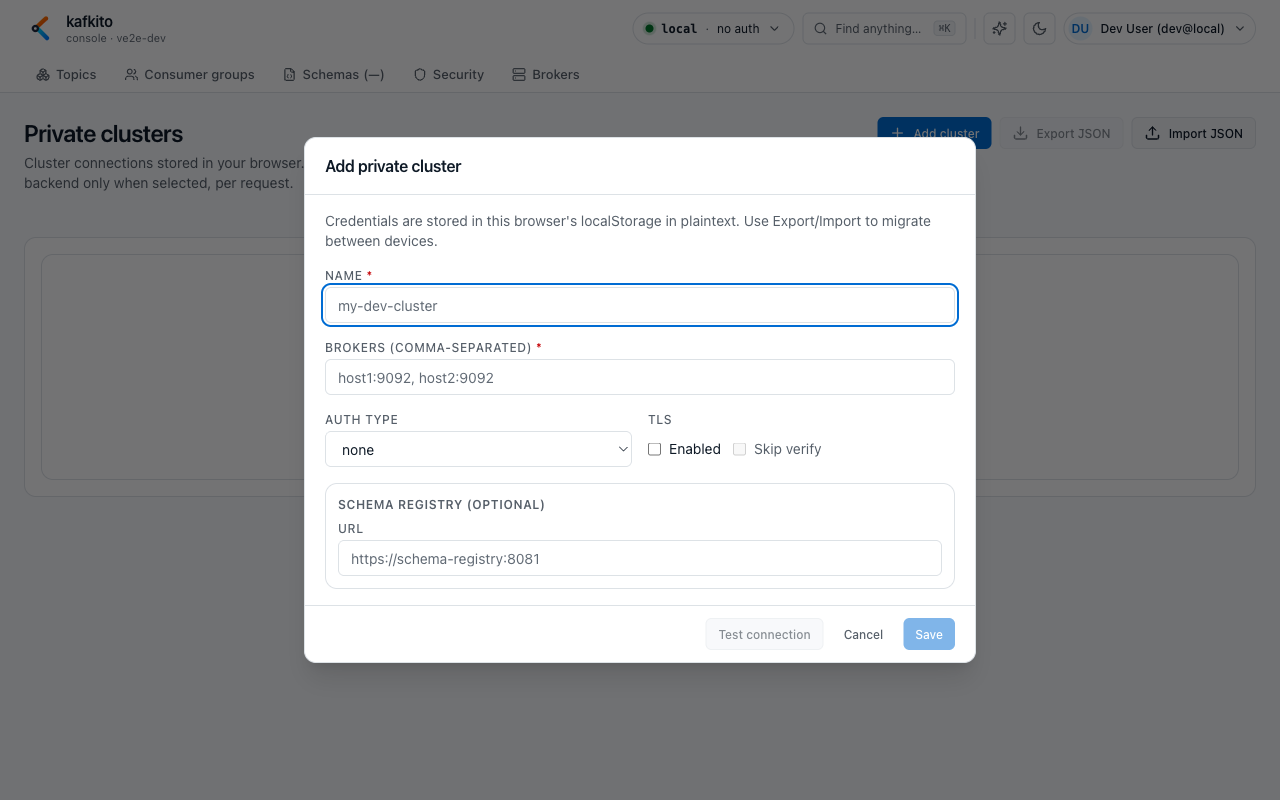
1. Open Add cluster.
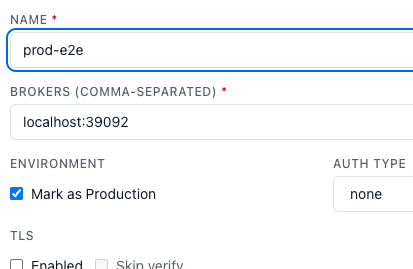
2. Enter Name and Brokers (comma-separated), at most 50 brokers.
3. Choose Auth type (none, SASL/PLAIN, SCRAM-SHA-256, SCRAM-SHA-512).
4. For auth types other than none, provide username/password. By default the browser does not remember the passwords: they stay in this tab, and a new tab asks for them when you open the cluster. Tick Remember passwords in this browser to store them.
5. Optionally mark the cluster as Production.
6. TLS is on by default. The form warns when it is off (all data, and with SASL/PLAIN also the username and password, travels in cleartext) and when Skip verify turns off the broker certificate check. Keep TLS on for SASL/PLAIN: kafkito rejects SASL/PLAIN without TLS for private clusters (Test connection shows HTTP 400: SASL/PLAIN requires TLS for private clusters) unless the operator allows it (private_clusters.allow_plain_without_tls). You can still save such an entry.
7. Optionally configure Schema Registry (URL + optional credentials/TLS).
8. Run Test connection, then Save.
When should I use this?
Use this when your cluster is not configured server-side or when you want to work with your own credentials.
Expected result after save
What do I see?
The cluster appears in Private clusters, in the cluster selector, and in Fleet overview with PRIVATE tag.
What can I do?
1. Select it and start working in Topics, Groups, and Brokers.
2. Use Export JSON to back up cluster configs. Kafkito asks for a passphrase (at least 12 characters) and encrypts the file with it. The file cannot be opened without the passphrase, and Kafkito cannot recover a lost one.
3. Use Import JSON to move them to another device/browser. For an encrypted file, enter the passphrase it was exported with. Unencrypted files from older versions still import; export again to get an encrypted copy.
When should I use this?
Use this for cross-device migration or sharing connection configs within your team.
Common pitfalls
What do I see?
Connection test/save errors or missing availability in certain tabs (for example Schemas).
What can I do?
1. First test is slow/timeout: on cold DNS, first probe can be slow; retry is often much faster.
2. Generic error texts: a failed test only says what went wrong: connection refused, connection timed out, host name could not be resolved, TLS handshake failed, authentication failed, destination not allowed or broker not reachable. A rejected broker is named by its position in your list (broker 2: ...), not by its address. Your operator finds the full error in the server log.
3. Too many tests: you can run Test connection 10 times in a row, then once every 6 seconds. Beyond that the test shows HTTP 429: too many requests; wait a few seconds and run it again.
4. Schemas unavailable: without Schema Registry URL, Schemas cannot be used. Configure SR in cluster settings.
5. Auth failure: verify Auth type matches broker setup and credentials are complete.
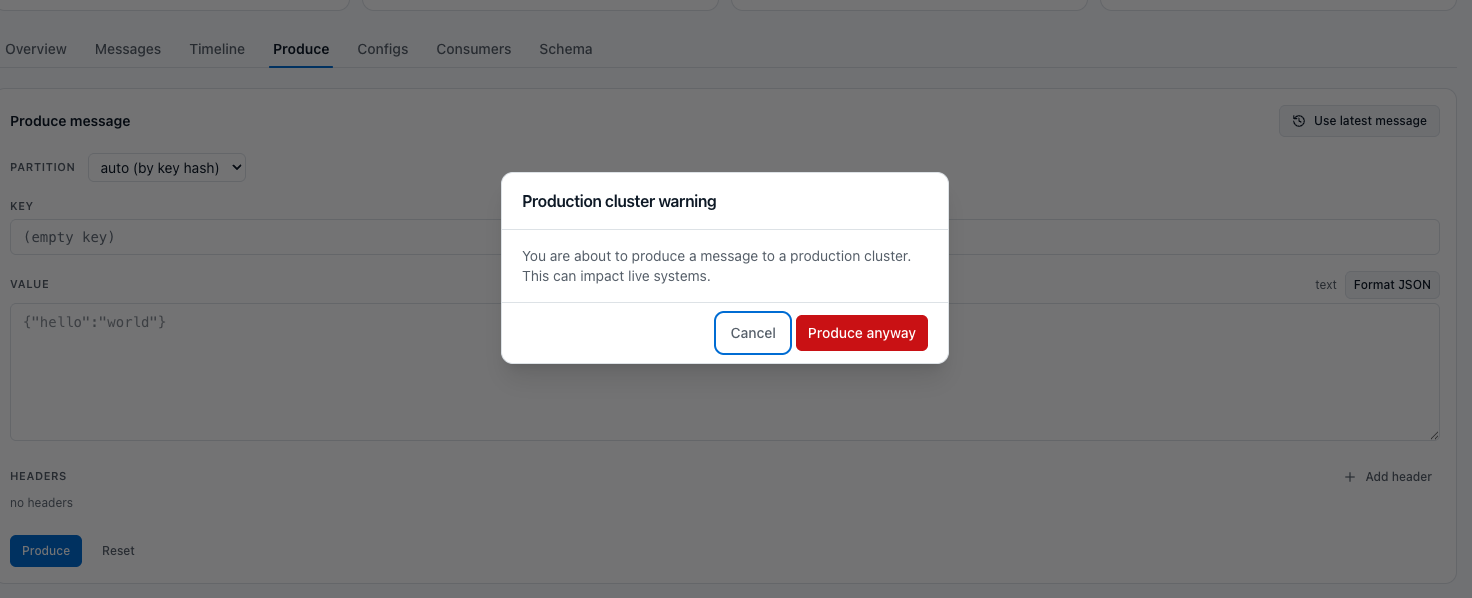
6. Produce warning on prod: if a cluster is marked as Production, producing a message requires an extra confirmation step.
7. Name conflicts: if a private cluster has the same name as a shared cluster, shared cluster wins in selector. Use distinct names.
8. Delete is local: deleting removes the entry only from the current browser. Export before deleting if needed.
When should I use this?
Use this when connectivity behaves unexpectedly or a newly added cluster is not usable as expected.
Security note
Private-cluster definitions are stored in your browser's localStorage. Passwords are kept only in the open tab unless you tick Remember passwords in this browser; remembered passwords are stored unencrypted. Credentials are sent to the backend only for requests targeting the selected private cluster. Export files include the definitions and the remembered passwords, encrypted with the passphrase you choose; passwords that are not remembered are left out. A password kept in a tab is dropped when the cluster's brokers, auth, TLS or Schema Registry settings change.
The credentials travel in a request header, so only add a private cluster when kafkito is served over HTTPS (see Running behind TLS).
Messages you produce or copy through kafkito carry your user identity, often your e-mail address, in the X-Kafkito-User record header, on private clusters too. Everyone who can read the topic sees it for as long as the cluster keeps the record.