Typical UI workflows
Workflow 1: Find a message in a topic
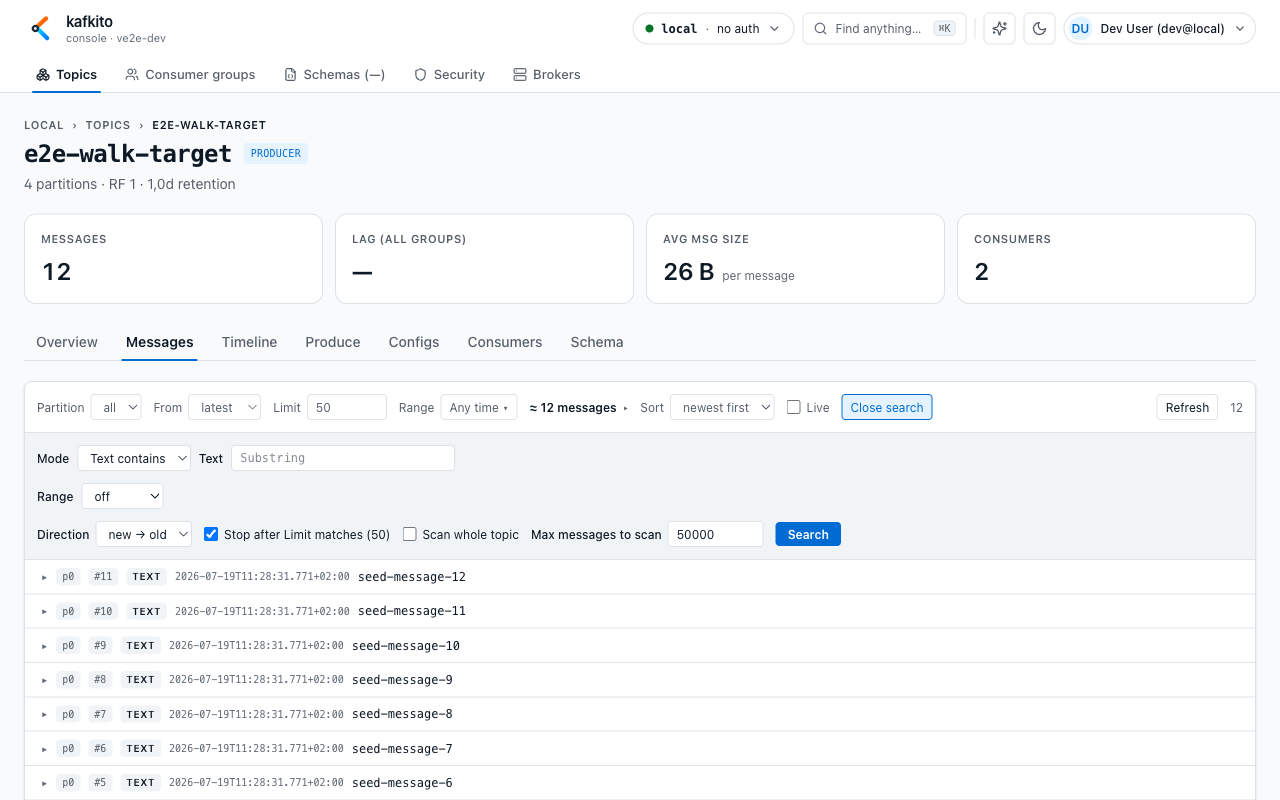
What do I see?
In the topic Messages tab: partition, start-point, limit, range controls, and the Search panel.
What can I do?
1. Open Topics → Topic-Name → Messages.
2. Optionally scope partition, set From (latest, oldest, offset), and choose a range.
3. Open Search.
4. Use Mode = Text contains for quick searches, Record key or Header to compare the key or one header, or switch to JSONPath, XPath, or JavaScript.
5. Enter search value and run Search.
6. Use Search more → when scanning larger ranges.
Examples: searching on two fields (UI)
Use the UI controls (Mode / Path / Operator / Value) — no API calls needed for everyday use. Steps:
- Open Topics → select topic → Messages → Search.
- Set Mode to either
JavaScript(recommended) orJSONPath(alternative). - Paste the expression below into the Search value field and click Search.
JavaScript (recommended — easiest for object checks):
- Mode: JavaScript
- Search value (paste exactly):
// find unpaid invoices for CUST-123
parsed.type === 'invoice' && parsed.customerId === 'CUST-123' && parsed.status === 'UNPAID' && parsed.totalAmount > 1000 && parsed.currency === 'USD'
Why JS: the UI passes the parsed JSON object as parsed, so field access and boolean logic are straightforward. The UI will show matched records when the expression evaluates to true.
JSONPath (alternative — when you prefer path expressions):
- Mode: JSONPath
- Operator: exists
- Path (paste into Path field):
$..[?(@.type=='invoice' && @.customerId=='CUST-123' && @.status=='UNPAID' && @.totalAmount>1000 && @.currency=='USD')]
XPath (for XML payloads):
- Mode: XPath
- Path:
/invoice/customerId - Operator:
= - Value:
CUST-123
Use //customerId to match the element at any depth, or /invoice/@status for an attribute.
Header (one header by its key):
- Mode: Header
- Header key:
x-correlation-id(type it, or press ↓ for the header keys of the loaded messages and how many of them carry each) - Operator:
= - Value:
abc-123
exists finds the messages that carry the header, missing those that do not. The header key matches exactly, case-sensitive.
Record key: Mode Record key, then an operator and a value, for example regex and ^ord-.
From a message: expand it and click the key, or open its headers (Headers · n, collapsed by default) and click a header's key (records carrying that header) or value (that exact value), the same way you click a field in the JSON view. A masked header value is not clickable. The search panel opens filled in; Undo restores what you had typed before.
Test evidence: Audit snapshot on an expanded message downloads a PNG of the record with date, time, user, cluster and topic; see Workflow 7.
Notes:
- JSONPath filters select nodes; use exists to match messages where the expression finds at least one node.
- JavaScript mode is more robust for complex predicates and has access to: key, value (raw string), parsed (JSON object or null), headers, partition, offset, timestampMs.
- For scripting and automation, the API endpoint is documented under the API reference: /API/#search — use that when you need curl/snippets or to integrate searches into scripts.
When should I use this?
Use it to find specific IDs, header patterns, or payload fields in live or historical streams.
Expected result
You get matching records with partition/offset/timestamp and can inspect payload immediately.
Workflow 2: Check and narrow down consumer lag
What do I see?
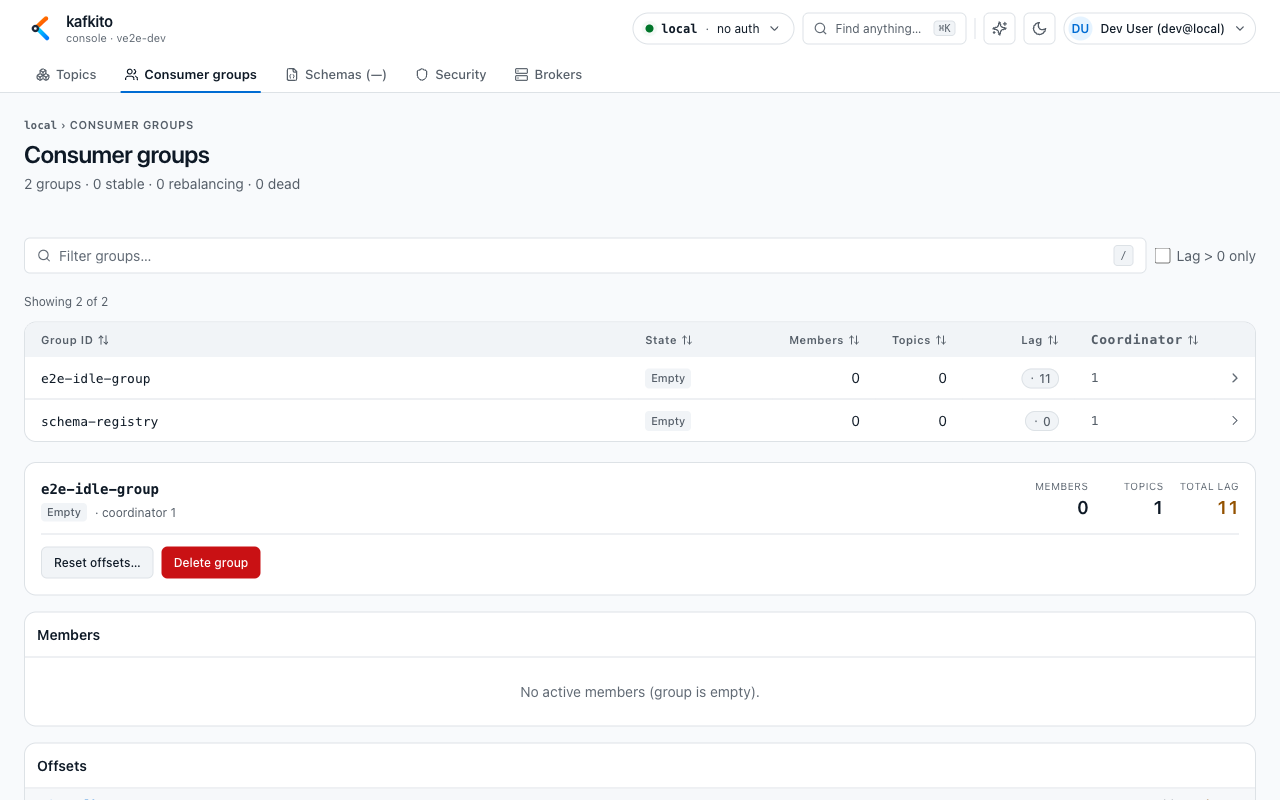
Under Consumer groups, you see a group list (State, Members, Topics, Lag) and a detail panel for selected group.
What can I do?
1. Open Consumer groups.
2. Filter by group ID or enable Lag only.
3. Select a group to open details.
4. In Offsets, compare Offset, Log end, and Lag per topic/partition.
5. Jump to affected topic directly from detail links.
When should I use this?
Use it when backlog grows or it is unclear whether lag is localized or widespread.
Expected result
You can identify whether lag is global or concentrated in specific topics/partitions.
Workflow 3: Understand offsets by cross-checking Messages
What do I see?
In group detail, committed offsets per partition; in topic Messages, the offset start mode.
What can I do?
1. In Consumer groups, open the affected group and note lagging partition/offset context.
2. Open the linked topic and go to Messages.
3. Set From = offset and enter the offset you want to inspect.
4. Select matching partition (or all for broader comparison).
5. Review records around that offset.
When should I use this?
Use it when you need to translate lag numbers into concrete records before/after consumer position.
Expected result
You can connect abstract lag metrics to specific message context for troubleshooting.
Workflow 4: Set or reset committed consumer offsets
What do I see?
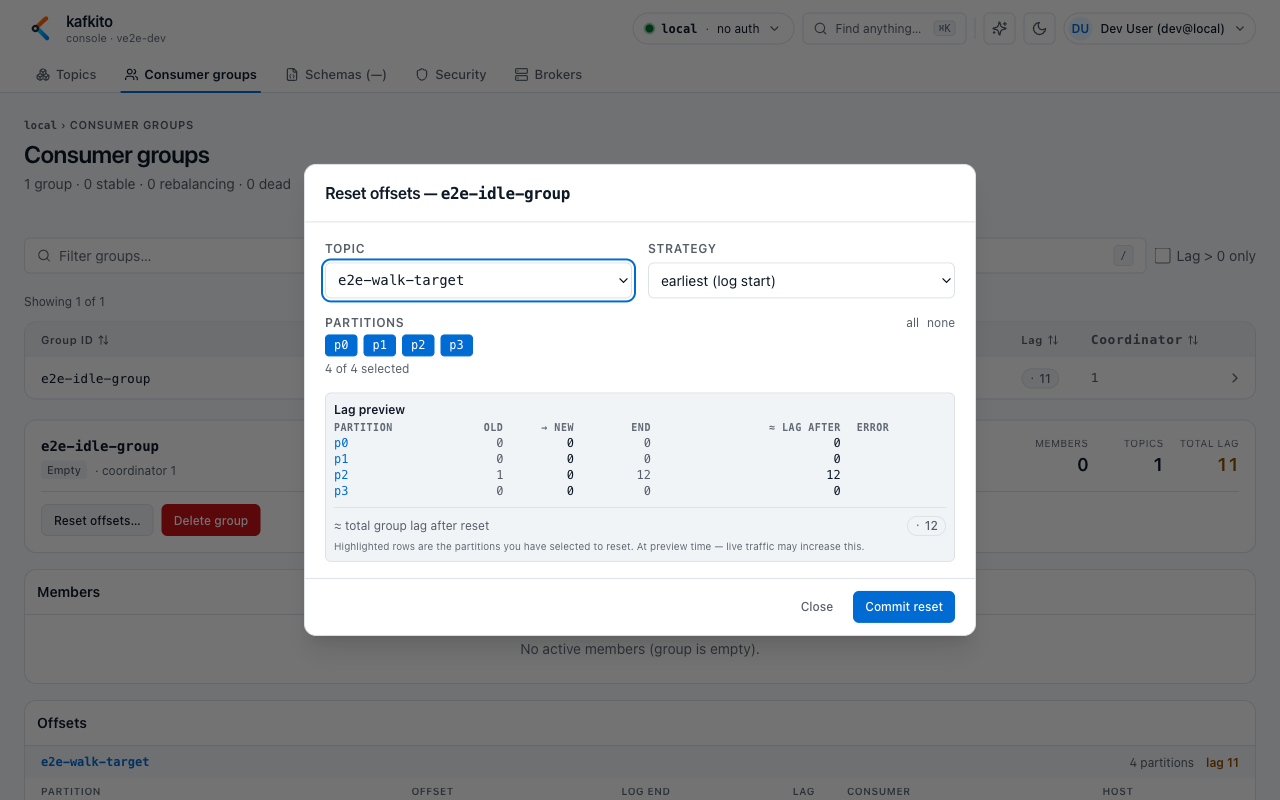
In Consumer groups detail, you get the Reset offsets… action (enabled only for Empty/Dead groups) and a modal with strategy + partition selection.
What can I do?
1. Open Consumer groups and select the target group.
2. Ensure group state is Empty or Dead (otherwise reset is blocked).
3. Click Reset offsets….
4. Choose Topic and Strategy (earliest, latest, specific offset, timestamp, shift-by).
5. Select partitions to update.
6. Review Lag preview before commit.
7. Click Commit reset and confirm.
When should I use this?
Use it when you intentionally need to replay, skip, or realign consumption for a group.
Expected result
Committed offsets change for selected partitions and group lag is recalculated.
Workflow 5: Check message volume over time (Timeline)
What do I see?
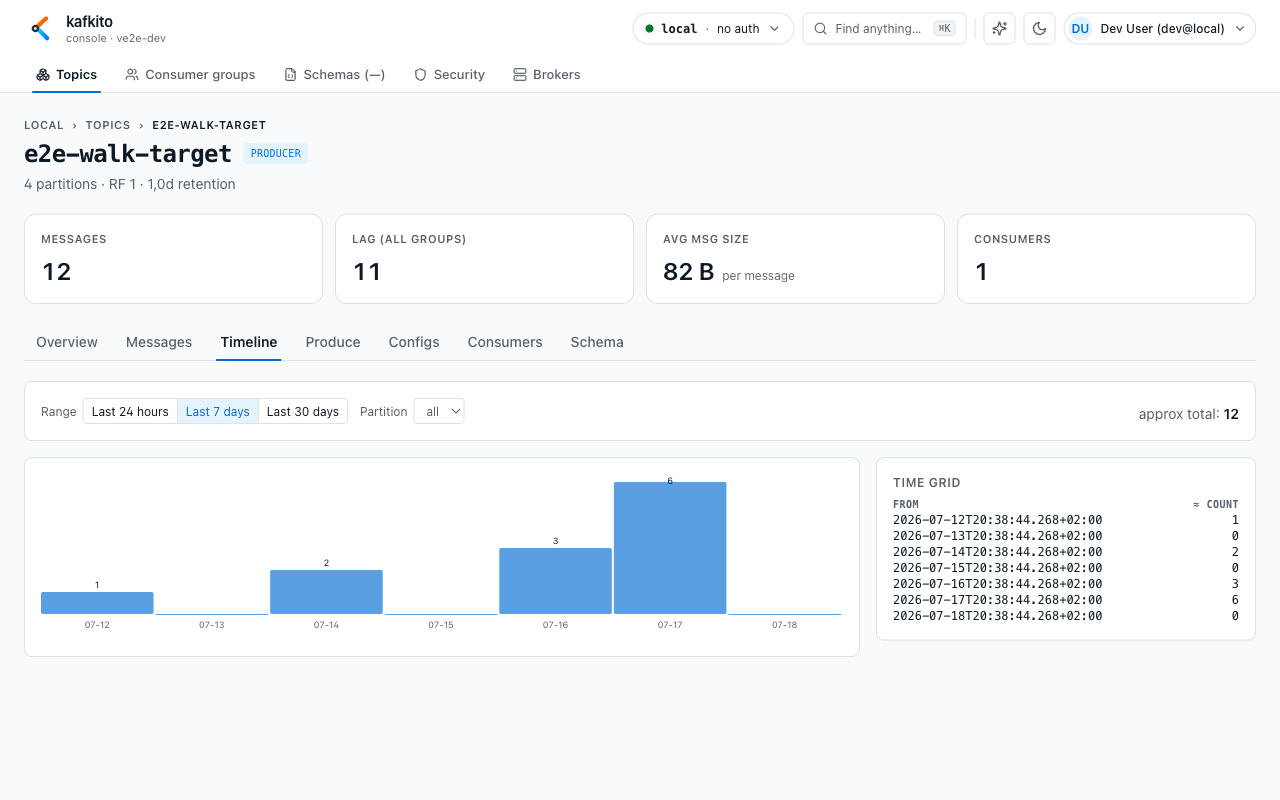
In topic detail Timeline, you get a bar chart and time grid with approximate message counts per time slot.
What can I do?
1. Open Topics → Topic-Name → Timeline.
2. Select range preset (Last 24 hours, Last 7 days, Last 30 days).
3. Optionally scope a specific partition.
4. Inspect bars and the time grid to see when traffic peaked.
When should I use this?
Use it to answer “when did traffic increase/decrease?” before digging into individual records.
Expected result
You can quickly identify low/high traffic windows and correlate them with lag or incidents.
Workflow 6: Compare two messages across topics or clusters
What do I see?
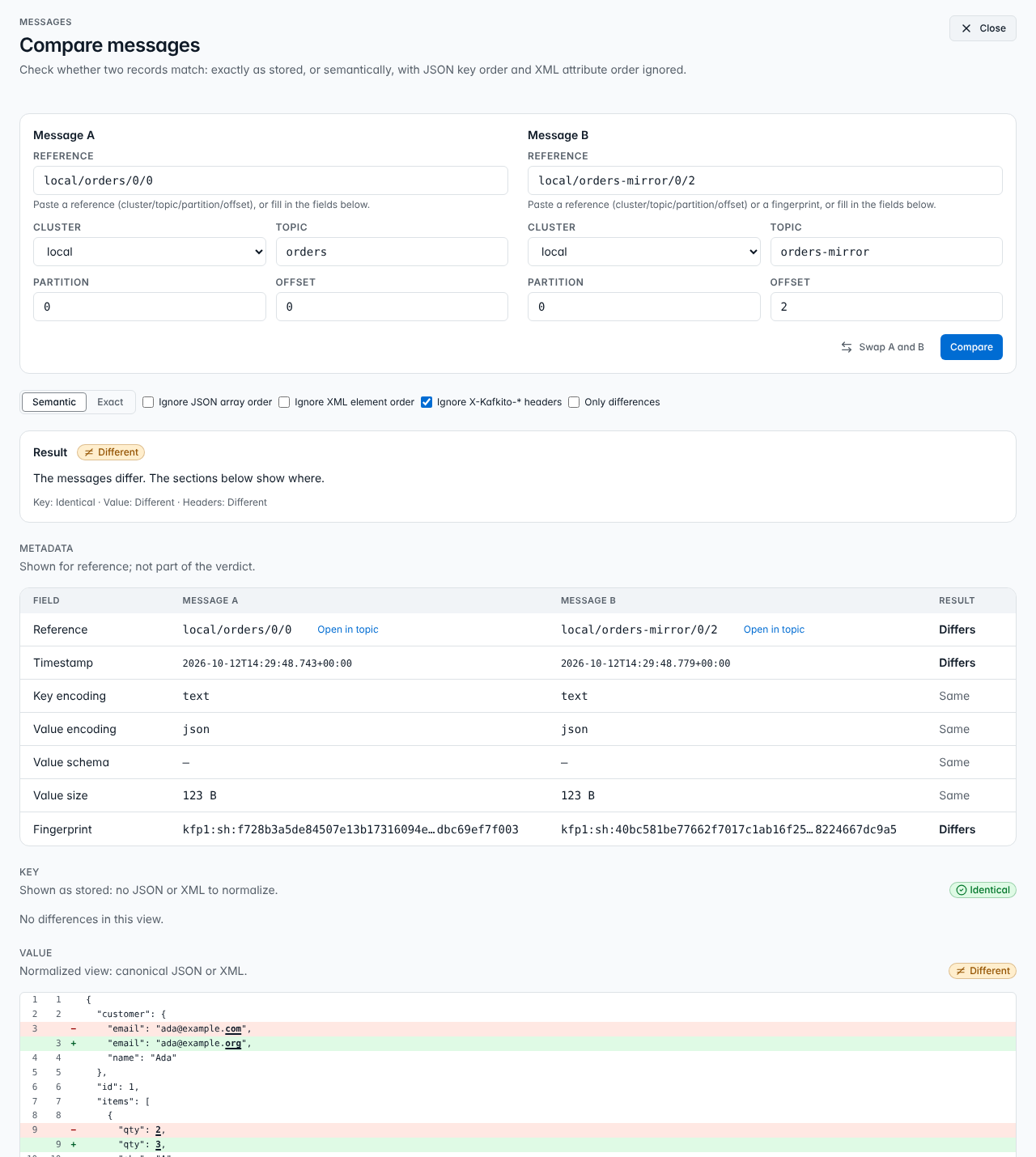
The Compare messages page puts two records side by side: a verdict for
key, value and headers, a line diff, a header table and the metadata of both
records (timestamp, encodings, schema, size, fingerprint).
What can I do?
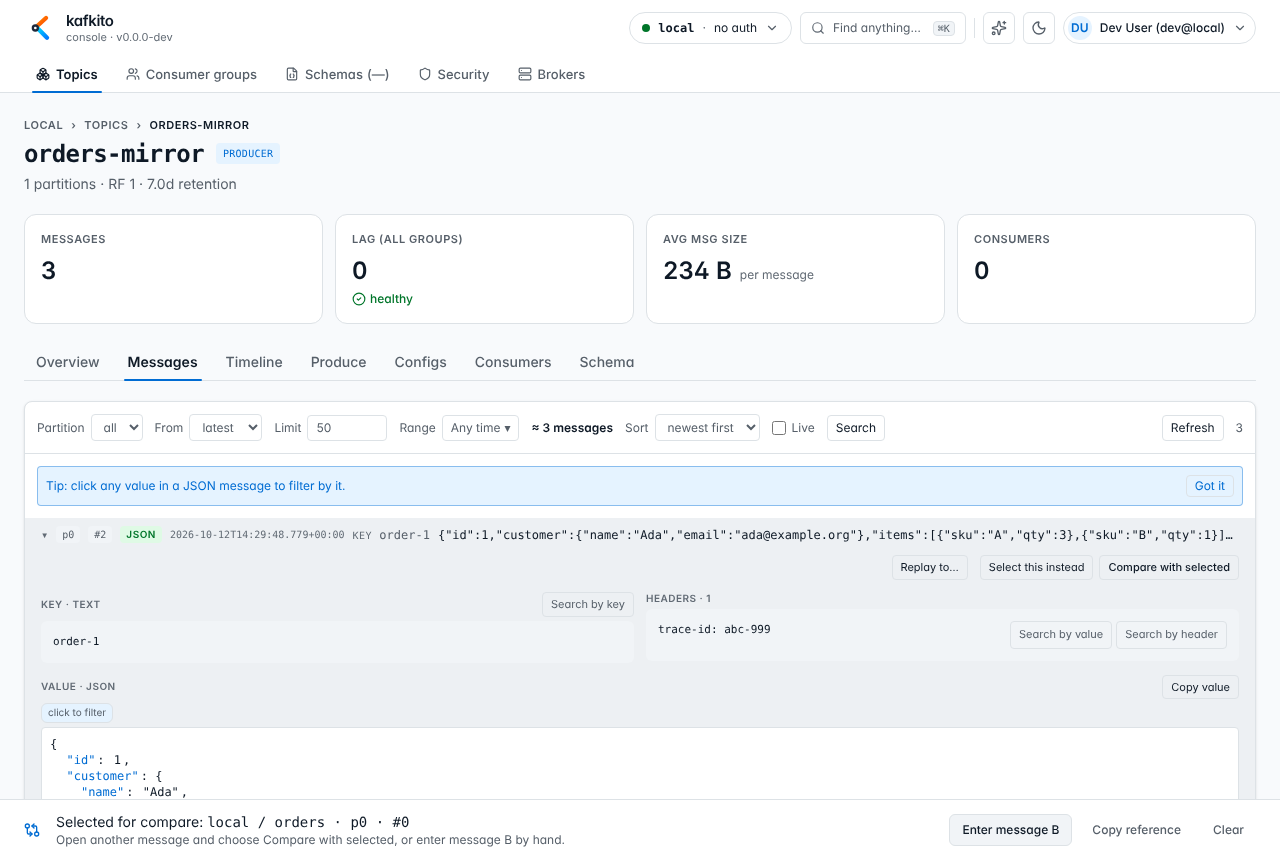
1. Open a message in Topics → Topic-Name → Messages and click
Select for compare at the top of the expanded message. A bar at the
bottom of the page shows the selection from now on, also in other topics
and clusters.
2. Open the other message (another offset, another topic, or a topic on
another cluster) and click Compare with selected. The compare page
opens with both messages.
Alternatively click Enter message B in the bar and type the cluster,
topic, partition and offset of message B, or paste a reference
(cluster/topic/partition/offset, from Copy reference in the bar).
3. Close returns to the page you started the compare from; Open in
topic next to each reference in the metadata table shows the message
in its topic. Clear in the bar drops the selection.
4. Pick the view: Semantic compares JSON and XML in a canonical form (key
and attribute order, whitespace, namespace prefixes and number notation
such as 12.5 vs 12.50 do not count); Exact compares the content as
stored. Optionally ignore JSON array order or XML element order.
5. Tick Only differences to hide unchanged lines, headers and metadata.
6. To check a message against a fingerprint (kfp1:…, from the metadata
table of an earlier compare), paste it as message B.
When should I use this?
Use it to verify that a replicated, copied or transformed record still carries
the same data, or to find the field that changed between two versions.
Expected result
The verdict reads Identical (byte for byte), Equivalent (same data,
formatting or order differs), Different (with the changed lines) or
Not comparable (masking on one side, or only a 64 KB preview available).
Provenance headers kafkito adds on produce, replay and copy (X-Kafkito-*)
are ignored unless you untick the option.
Large values: up to 1 MB everything above applies. Between 1 MB and 4 MB the value is compared exactly only (no semantic level, no semantic fingerprint). Above 4 MB only the 64 KB preview is compared, and the verdict says so.
Workflow 7: Capture a message as test evidence (Audit snapshot)
What do I see?
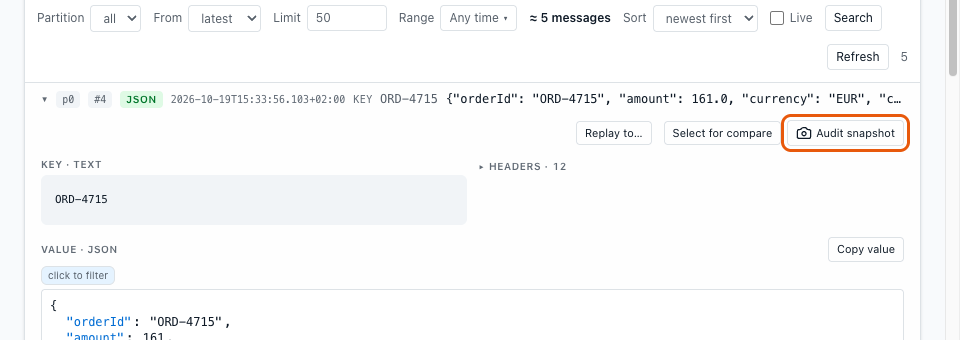
An expanded message in Topics → Topic-Name → Messages has an Audit snapshot button in its action bar, next to Replay to… and Select for compare.
What can I do?
- Pick the cluster in the cluster switcher and open Topics → Topic-Name → Messages.
- Find the record: set partition,
Fromand range, or use Search (see Workflow 1). - Click the row to expand the message.
- Click Audit snapshot. The browser downloads a PNG; nothing is stored on the server.
- Attach the PNG to the test case, ticket or audit record.
The file is named
kafkito-audit-<cluster>-<topic>-p<partition>-o<offset>-<YYYYMMDDTHHMMSS>.png,
for example kafkito-audit-local-demo.orders-p0-o4-20261019T194059.png, so
several snapshots sort by cluster, topic and time in a folder.
What is in the snapshot?
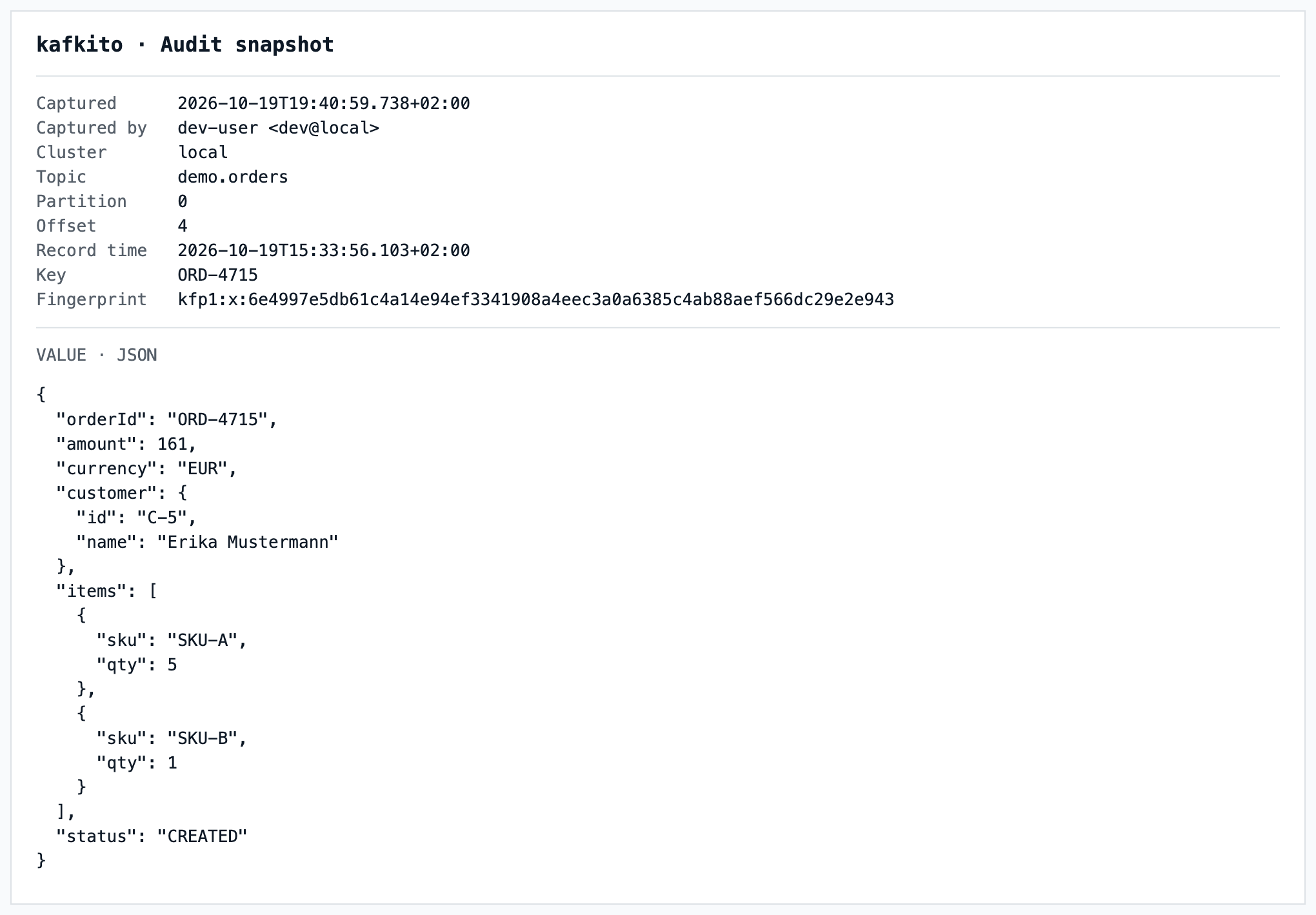
| Field | Content |
|---|---|
| Captured | Date and time of the click, with milliseconds and UTC offset |
| Captured by | User name and email of the signed-in user, — without authentication |
| Cluster | Cluster name as shown in kafkito, followed by [PROD] for production clusters. Broker addresses are never shown |
| Topic, Partition, Offset | Where the record is stored; together they identify it uniquely |
| Record time | Kafka timestamp of the record, with UTC offset |
| Key | Record key, (no key) if it has none |
| Fingerprint | kfp1:x:<sha256> over key, value and headers |
| Note | Only when it applies: masking, or a value shown as a preview |
| Value | The value, pretty-printed for JSON and XML |
Headers are not part of the image; they are covered by the fingerprint.
Checking a snapshot later
The fingerprint makes the image verifiable. Open Compare with the record
as message A (Select for compare, then Enter message B) and paste the
kfp1:… value from the image as message B. Identical confirms that the
record in Kafka still matches the snapshot byte for byte (see
Workflow 6).
Good to know
- The image is always light, also in dark mode, so it prints and files well.
- Times follow the Timezone setting in the user menu (
LocalorUTC); the UTC offset is always printed. The time in the file name is the browser's local time. - The snapshot holds what the message row shows. Values changed by a
data_maskingrule stay masked and get a note. A value above 64 KB is shown as its preview with a note and the full size; the fingerprint then reads— (reason), because it needs the complete value. - Long values are wrapped at 120 characters and cut after 1500 lines; the image says how many lines are left out. Use Copy value or Download raw for the complete value.
- The fingerprint is computed in the browser and needs a secure context:
kafkito served over HTTPS or on
localhost.
When should I use this?
Use it whenever a test, an acceptance or an audit needs proof that a
specific record was in a specific topic on a specific cluster at a given
time, for example as evidence for an auditor or for a test protocol.
Expected result
A self-contained PNG that names cluster, topic, position, time and the
person who captured it, shows the value and carries a fingerprint to check it
against the live record.