Getting started in the UI
This page gives you the fastest practical entry into the kafkito UI. For endpoint and payload details, use the API reference.
1. Initial orientation
What do I see?
At the top, you get the header with cluster selector (ClusterPill), search (Find anything… / ⌘K), theme switch, and main navigation.
What can I do?
1. Switch the active cluster from the cluster selector.
2. Use ⌘K to jump directly to Topics, Consumer groups, Schemas, Security, or Brokers.
3. Open Manage clusters… to configure Private clusters.
When should I use this?
Use this as your default starting point when switching clusters or jumping to a specific resource quickly.
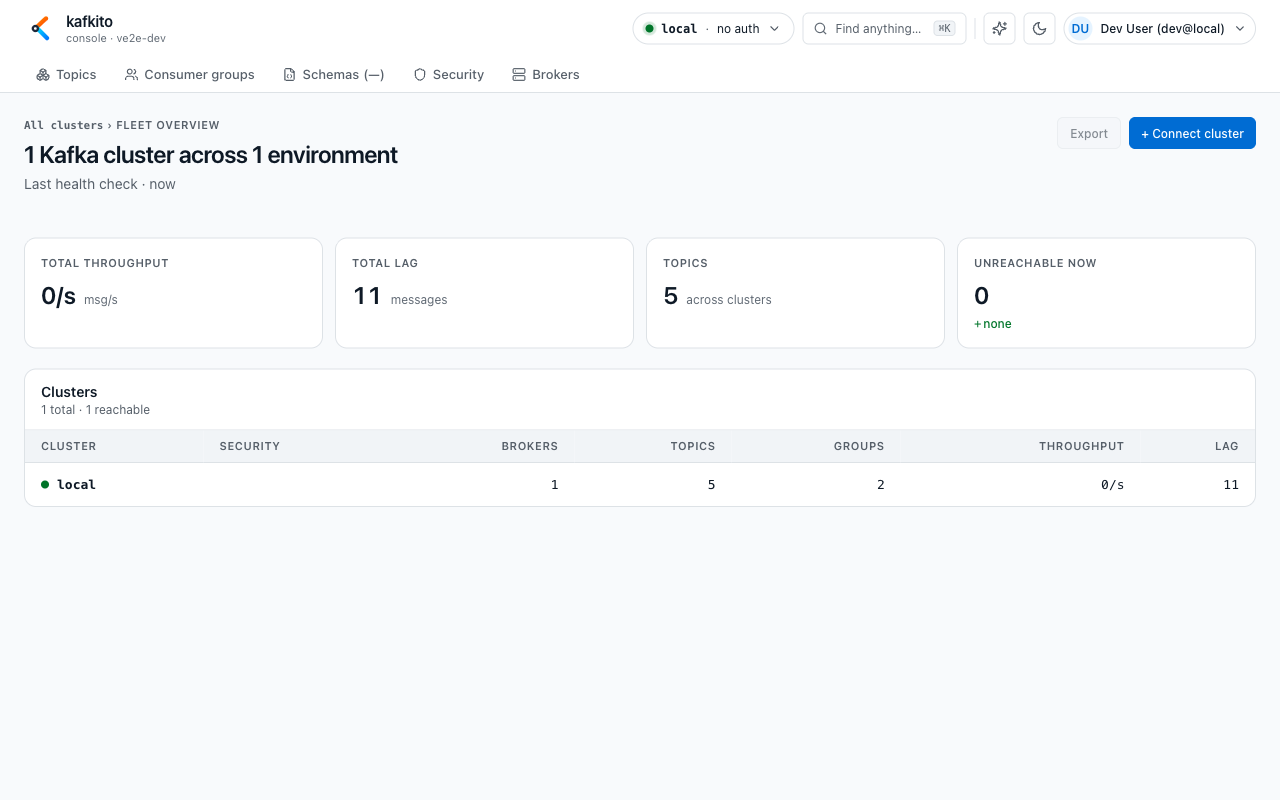
2. Understand Fleet overview
What do I see?
Under /clusters, you see Fleet overview with KPI cards and the cluster table (reachability and security tags such as TLS, SR, and PRIVATE).
What can I do?
1. Compare cluster status (reachable vs. unreachable).
2. Open a cluster from its row.
3. Add private clusters via + Connect cluster.
When should I use this?
Use it to understand which clusters are currently available and where to continue operational work.
3. Enter a cluster workspace
What do I see?
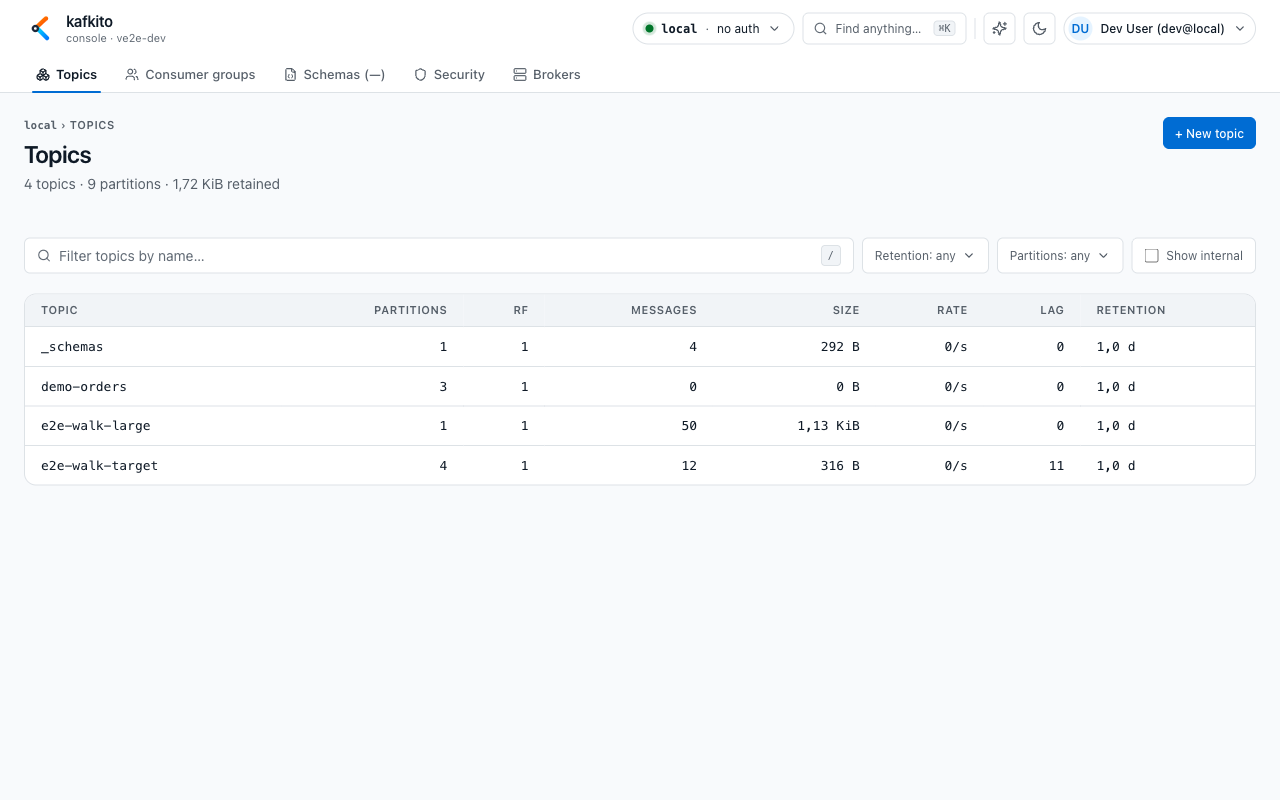
After selecting a cluster, the main areas are: Topics, Consumer groups, Schemas, Security, and Brokers.
What can I do?
1. Topics: browse topics and use detail tabs (Overview, Messages, Timeline, Produce, Configs, Consumers, Schema).
2. Consumer groups: inspect status, lag, members, and offsets.
3. Schemas/Security/Brokers: review registry subjects, ACL/SCRAM users, and broker metadata.
When should I use this?
Use this whenever you move from fleet-level status to cluster-level diagnostics or changes.
4. Important usage notes
What do I see?
Some actions are intentionally disabled (for example, schema registration in UI), and some views depend on rights/capabilities.
What can I do?
1. Read notices and warning banners (for example missing rights on GROUP:* or CLUSTER:*).
2. If Schemas is unavailable, follow the link to Manage clusters and configure Schema Registry.
3. For automation or scripting needs, use the API reference.
When should I use this?
Use this when expected UI functionality is unavailable, disabled, or data does not load.